
How to Launch a New Website to Replace Your AllProWebTools Website
Thursday June 8, 2023
If you’ve built a new website and want it to replace your current AllProWebTools website, you can do this quickly by updating one simple setting in your DNS.
Step 1: Log In to Your DNS Manager
Start by logging into your DNS Manager. This is where the settings for your domain name are controlled.
You can follow these step-by-step instructions here: How to Access Your DNS Manager
Step 2: Find Your A Record
Once inside your DNS Manager, look for the record labeled A (also called an A Record).
The A Record tells the internet where your website is hosted by pointing your domain name (like example.com) to a specific IP address.
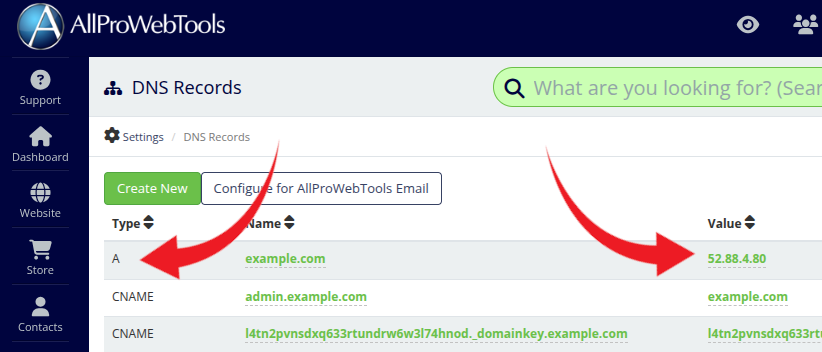
Step 3: Update the A Record
To launch your new website, simply change the IP address by clicking the old ip address in the A Record and type in the new ip address provided by your new website hosting company.
This tells the internet to load your new website instead of your old AllProWebTools site.
Step 4: New Login Location
Once your new website is live, the URL you use to login to your AllProWebTools account will change. Where it used to be something similar to example.com/logmein - it will now be apwt.example.com/logmein. All of your usernames and passwords will be the same on the new login URL.
That’s it! Once your DNS update finishes, your new website will be live at your domain name, fully replacing your old AllProWebTools website.
Categories
Recent Posts
Popular Tags
larimer startups cloud workplace productivity drip campaigns dns productivity happiness chat email reportsArchives
Subscribe
